
Sandboxie-Plus Setup Guide
Follow this visual 3-step walkthrough to download the 64-bit installer, select language options, and complete standard setup.
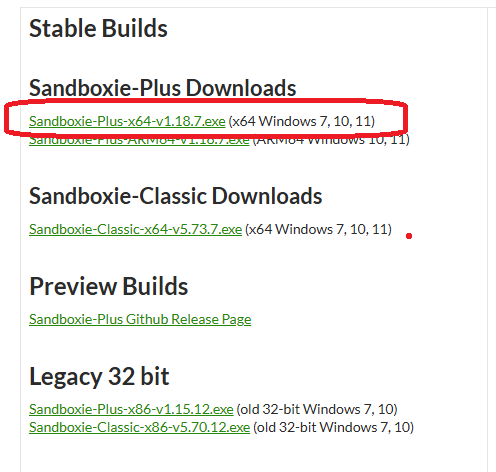
Select the x64 Executable
On the download list or release page, locate and choose the x64 installer executable (e.g., Sandboxie-Plus-x64-v1.x.x.exe). Modern 64-bit Windows systems require the x64 architecture binary for process sandboxing.
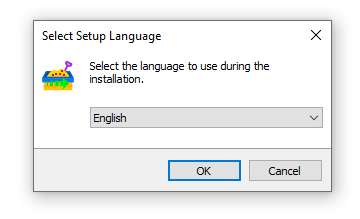
Open Installer & Choose Language
Locate the downloaded .exe in your browser downloads or folder and open it. When the installer language dialog appears, pick your preferred language (default is English) and click OK to proceed.
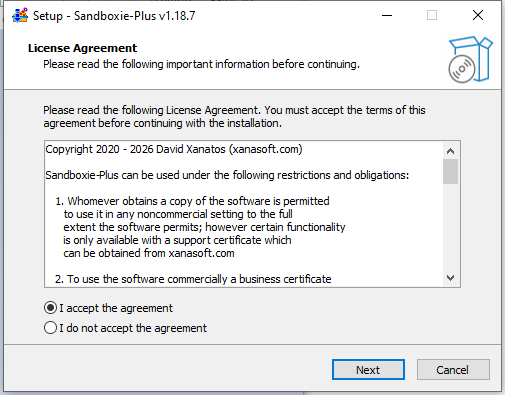
Accept License Agreement & Finish
Check the 'I accept the agreement' checkbox, click Next, and proceed with default installation settings (components and destination directory) until setup completes. Click Finish when done.
Why is Sandboxie-Plus required?
Sandboxie creates isolated, sandboxed environments on Windows. This enables Angels Online to launch multiple separate game windows simultaneously without client collision, mutex conflicts, or registry overlaps.
Next Step: Launch AOG Helper
Now that Sandboxie-Plus is installed on your computer, head over to the download page to verify your license key and download the AOG Helper suite.